Get system ready
This guide shows you how to set up a new system and get it ready for users.
Warning
You should read this page only if you are setting up a brand new system. To follow the steps below, you must be management staff.
Note
You must have an account with the management role to execute the actions below.
Steps
Step 1: System initialization by developer
After a successful deployment to production, one of the software developers should set up an initialization account for the client. That account should be a management account.
Note
A temporary password will be generated for this initialization account. Once the first user logs in, they'll be forced to change it.
Warning
Don't share this initialization account with anyone. Deactivate it after the first new admin user is in.
Step 2: Log in using Init account
The client can now log in using this initialization account with full system access.
Step 3: Invite yourself as management staff
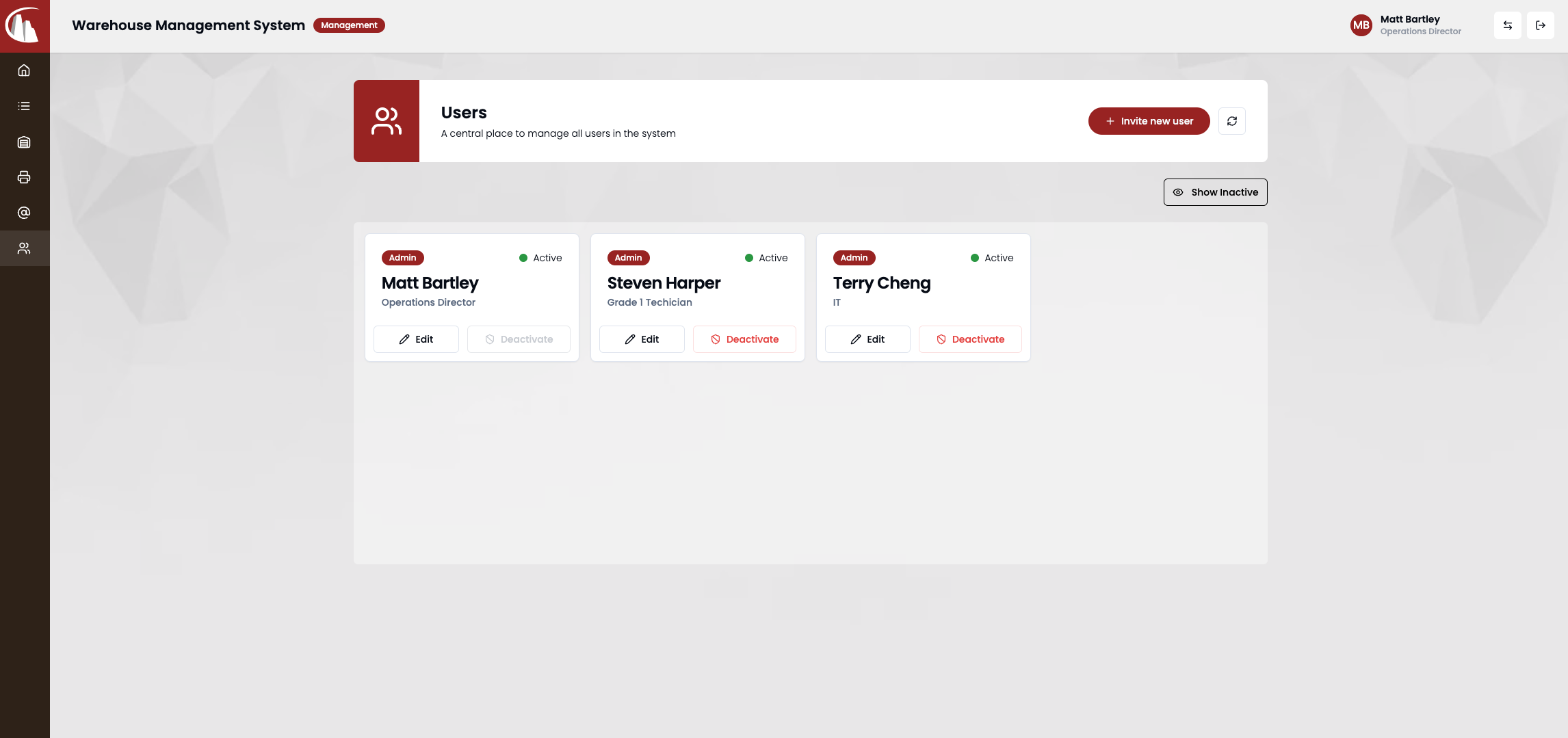
Navigate to /users page by clicking the users link on the left-hand-side navigation bar.
Click Add new user and then invite yourself.
Step 4: Log in using your own account
You should receive an invitation email. Follow the instructions inside, log in and reset your password.
Step 5: Deactivate Init account
Note
This is optional but recommended to secure the system.
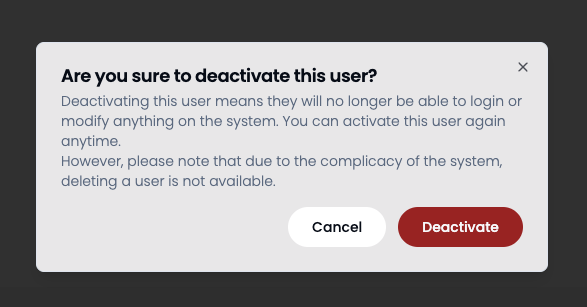
Go to /users page and click deactivate button on the init account. Then click Deactivate button on the modal.
Step 6: Set up Storage Code
Note
For more information about storage code, product category and model, see Asset management.
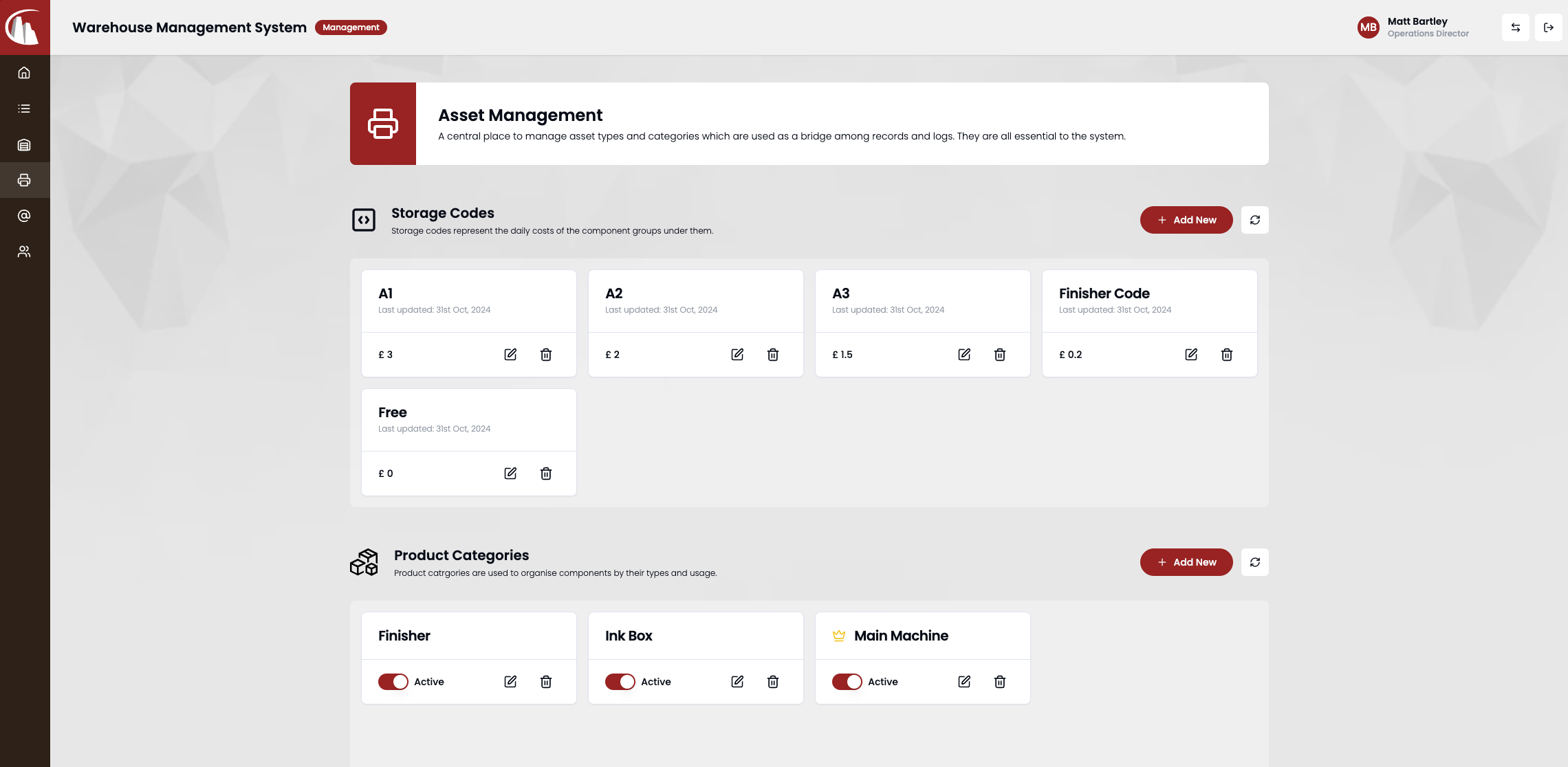
Navigate to /assets page by clicking the button on the left-hand-side navigation bar.
Scroll to Storage codes section, click Add new button to add at least one record to start.
Step 7: Set up Product Category
Scroll to Product categories section, click Add new button to add at least one main component record to start.
Step 8: Set up Product Model
Scroll to Product models section, click Add new button to add at least one record to start.
Step 9: Invite users
Now the system is ready to use. Follow step 3 to invite more management or operation staff. For more details, read How to manage users