Manage users
Note
You must have an account with the management role to execute the actions below.
This guide shows you how to manage users in WMA.
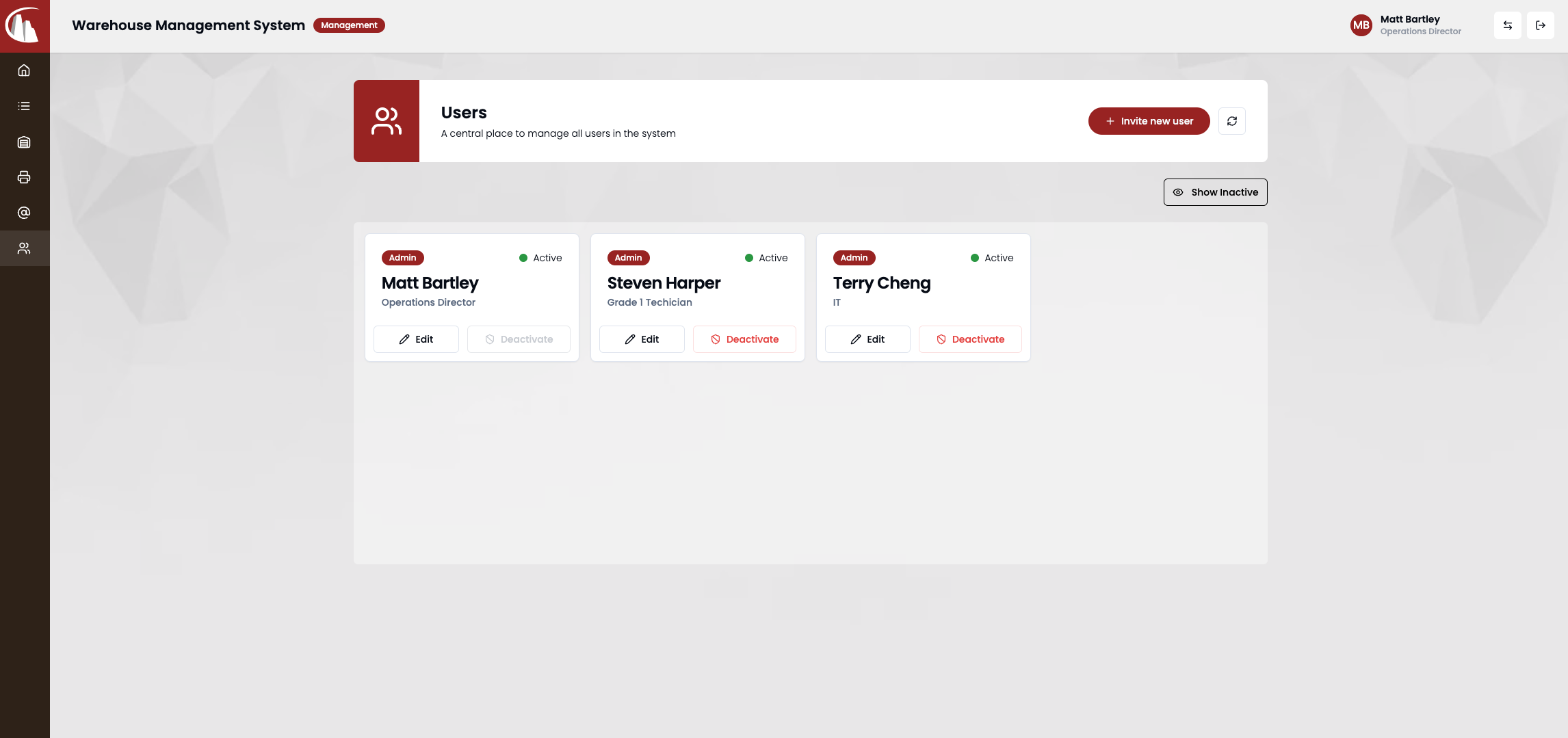
Invite user
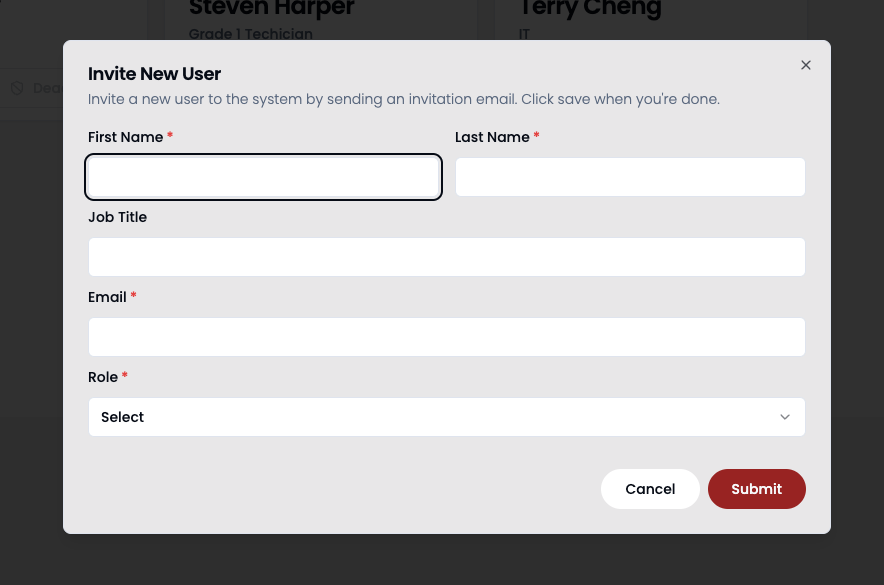
Click the invite new user button in the header to open a form. After you submit the form, an invitation email will be sent to that user's email address. The new user can follow the instructions in that email to gain full access to the system.
User status
There are two statuses for a user. By default, all new users will be in Pending status. This means they haven't gained full access to the system. At this stage, the user will be forced to change their password and get redirected to the change-password page.
Once the user changes their password after the first-time login, the status will change from Pending to Active.
Edit user
Management staff can edit user details except the email address. Once the user is in active status, no modification to the email address is allowed.
Deactivate user
In WMA, once the user is in active status, you cannot completely remove them. You can only deactivate the user so they lose access to the system immediately.
This is because every record is tied to a user. If someone accidentally removes a user, all records with that user will be removed as well, which could cause destructive data loss. This is why the delete user functionality is disabled.
Note
You cannot deactivate your own account.
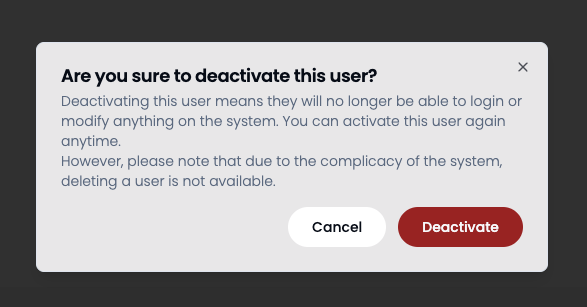
Click the Deactivate button on the user card. A modal will pop up to confirm your decision. Click deactivate to confirm the action.