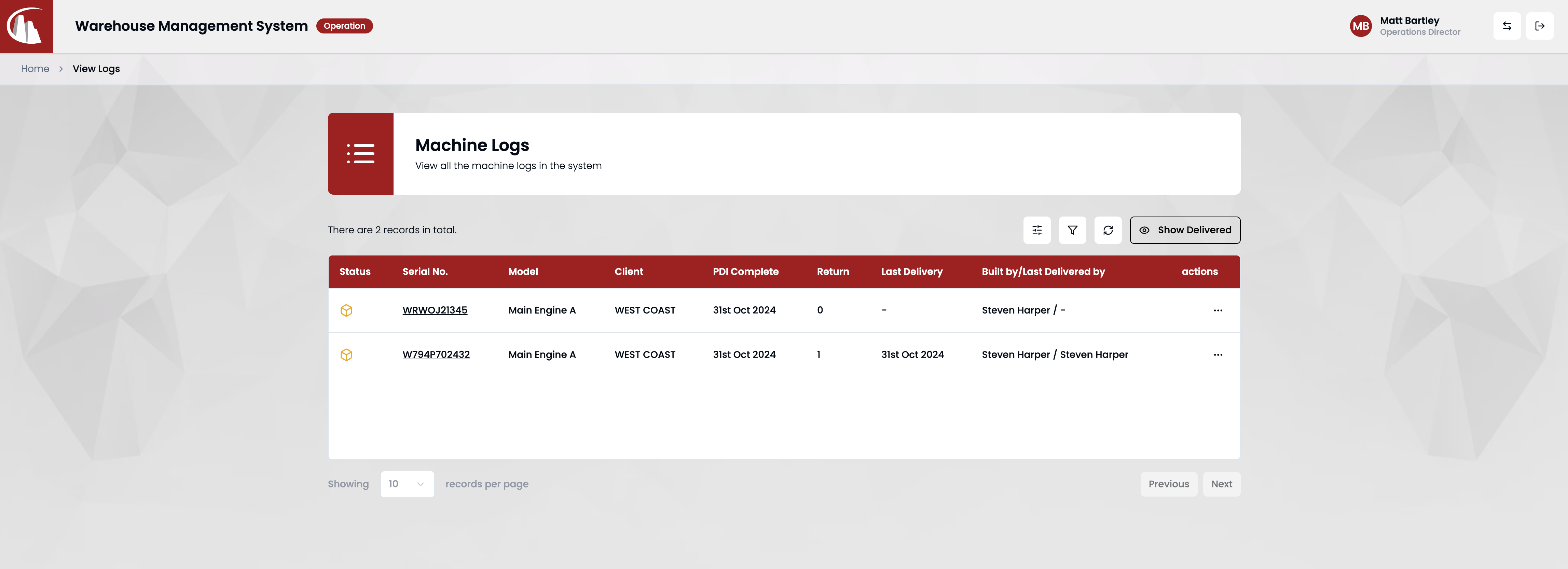
Create a machine log
This guide shows you how to create a machine log. If you're not familiar with what a machine log is, read concepts first.
Prerequisite
To create a machine log, there must be at least one entry record in the system. If there isn't one, contact your manager or follow the steps in how to create an entry record before continuing.
Steps
Step 1: Log in
Navigate to the landing page and then log in using your credentials.
Note
If you forgot your password, follow the steps in how to reset my password.

Step 2: Navigate to New Machine Log
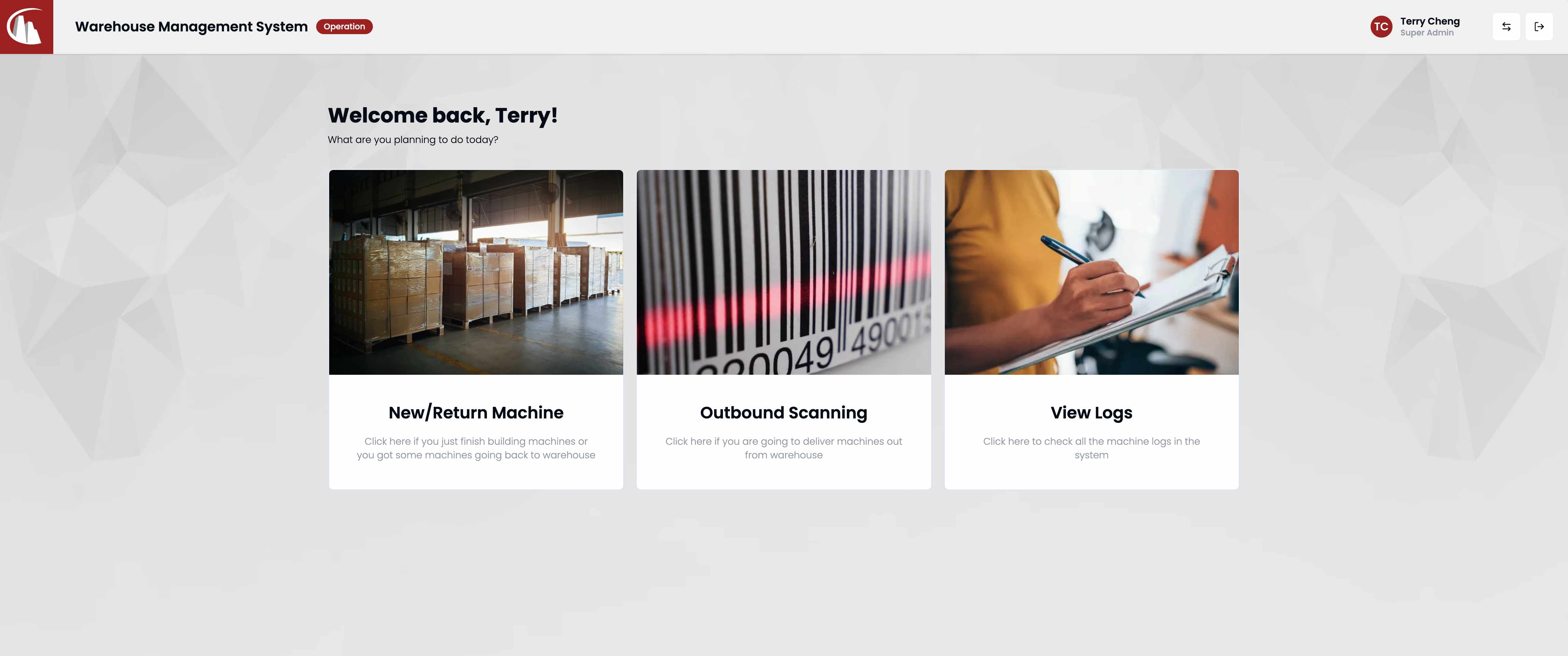
Click the New/Return Machine button on the operation dashboard;
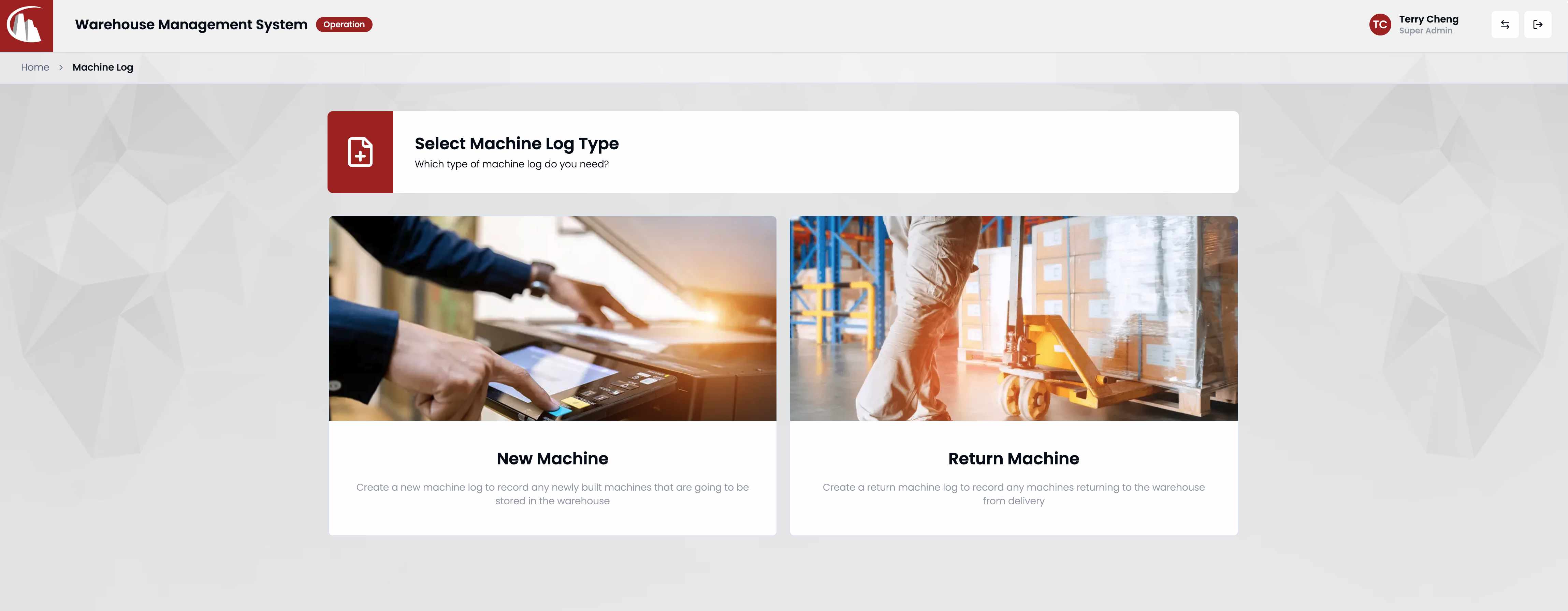
and then click New Machine button.
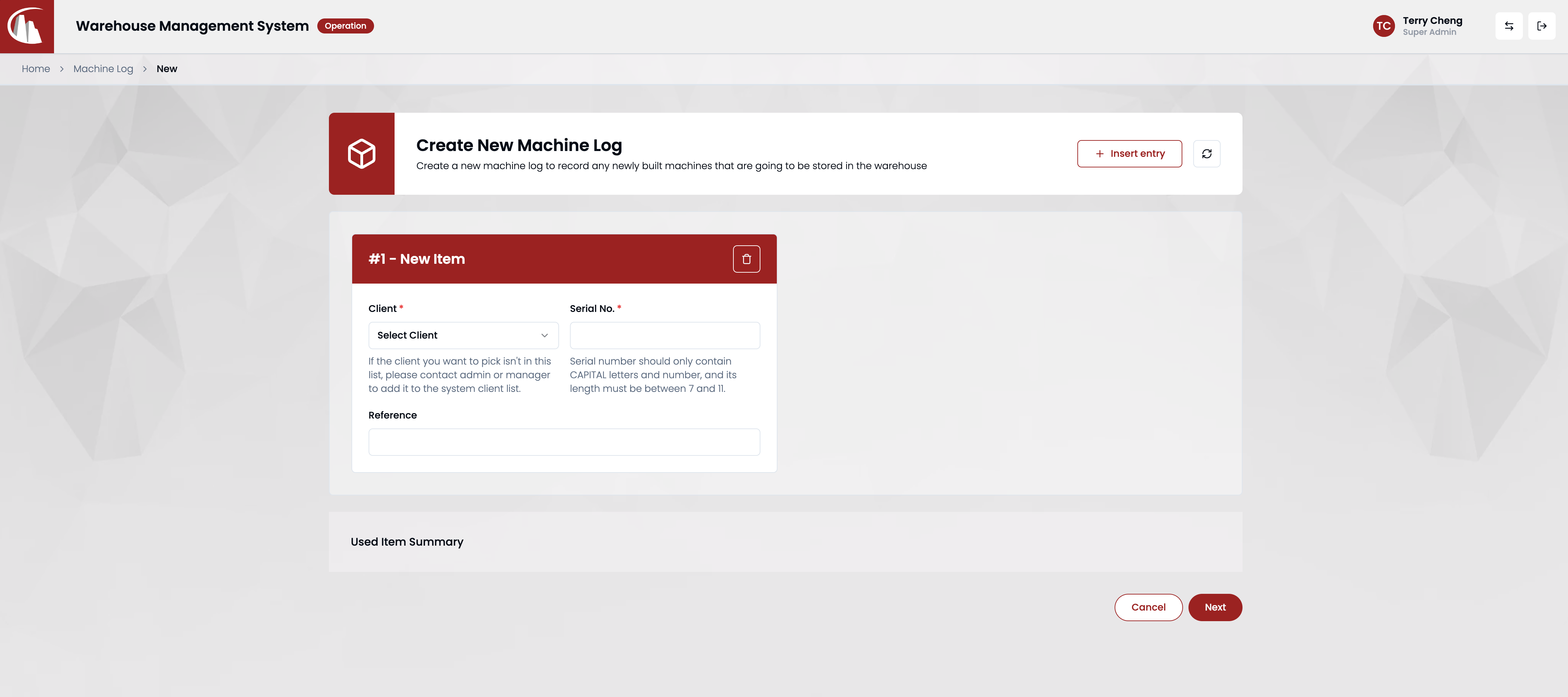
Step 3: Insert entries
Click Insert Entry button in the header to start entering details of each machine. Click Next button at the bottom when you finish.
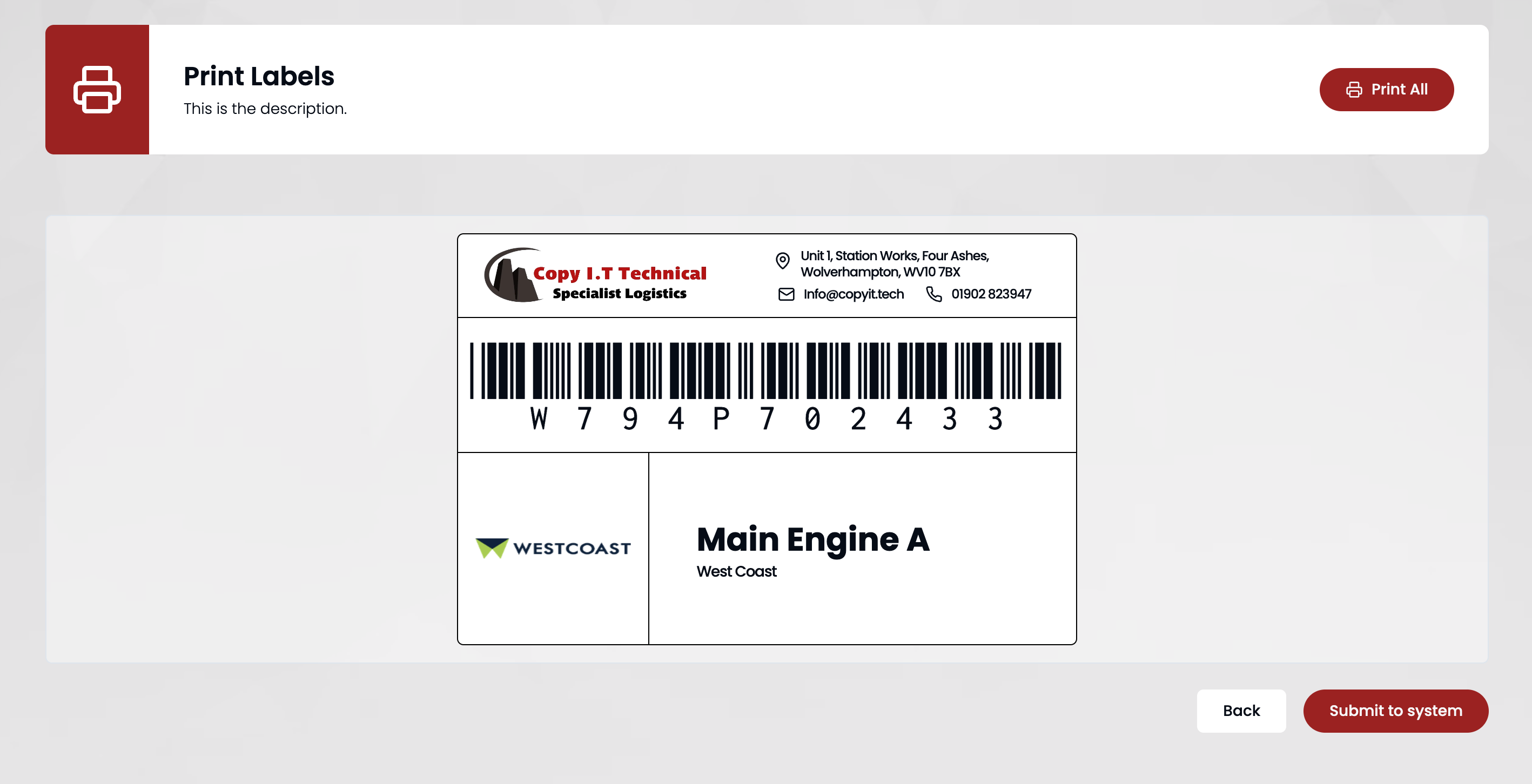
Step 4: Print labels
You can click Print all button in the header to print all labels in one go, or hover each label to print individually. After finishing, click Submit to system at the bottom.
Step 5: Submit & Check
After submission, navigate to /operation/logs or click View Logs on operation dashboard to check the changes.